
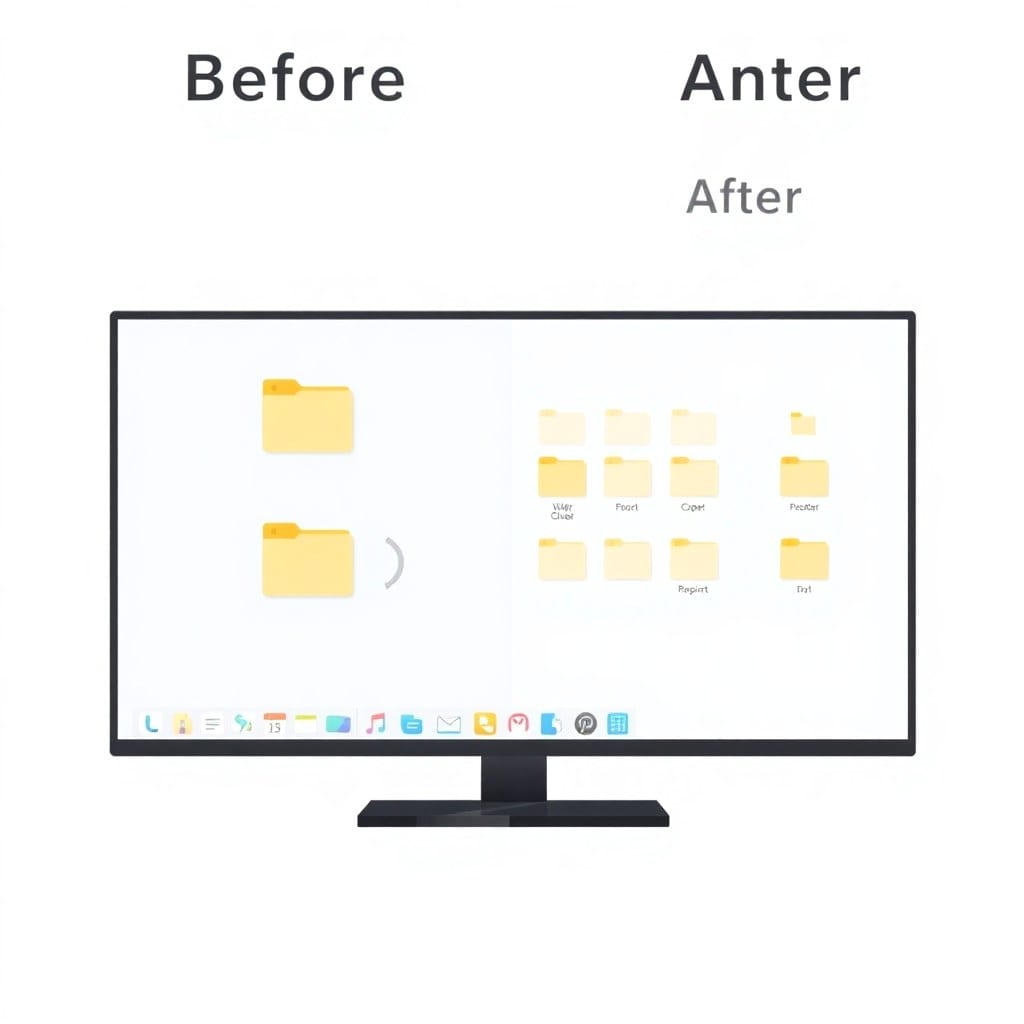
If you’ve ever had to rename a folder full of files — like `IMG_1234.jpg` to `2024-07-21-vacation-01.jpg` — you know the pain. You open the file manager, click, type, press enter, repeat. It’s mind-numbing, and it eats up time you could spend on actual work.
I’ve been there. As an indie hacker, I deal with client assets, export files, and screenshots constantly. For a while, I just accepted it. Then I wrote a script that does the whole thing in one command.
Here’s the deal: the script takes a pattern (like `{date}-{name}-{seq}`) and applies it to every file in a folder. It handles numbering, dates from file metadata, and even strips weird characters.
## The script in action
Let’s say you have 50 screenshots from a test session. You want them named `test-01.png`, `test-02.png`, etc. Run the script with a simple flag and it’s done in under a second.
But it goes further: you can extract the date from the file’s modification time, add a prefix or suffix, and even use a mapping file if you need custom names.
## Why not just use a GUI tool?
There are plenty of rename apps out there. But they’re often overkill — heavy downloads, complex UI, and they don’t always work on the command line. If you’re already comfortable with the terminal, a script is faster and more flexible. Plus, you can integrate it into a larger workflow.
## How to use it
The script is written in Python, so it works anywhere Python is installed. You pass in the folder path, a pattern, and optional flags. The pattern uses placeholders like `{name}`, `{date}`, `{seq}`. You can even include static text.
For example, to rename all `.txt` files to `notes-01.txt`, `notes-02.txt`, etc., you’d run:
“`bash
python rename.py –folder . –pattern ‘notes-{seq}’ –ext txt
“`
That’s it. The script sorts files naturally (so file2 comes before file10) and previews changes before you commit.
## A real-world example
A client sent me a folder of 200 images from a conference. They were named `DSC_0001.jpg`, `DSC_0002.jpg`, etc. I needed `conf-2024-01.jpg`, `conf-2024-02.jpg`, etc. I ran the script with a pattern and a date prefix. Done in seconds. The client thought I used some fancy tool — it took longer to explain than to do.
## What about errors?
The script checks for duplicate names and warns you. It also has a `–dry-run` mode that shows what would change before you commit. So you can test it on a copy first if you’re nervous.
## Take back your time
I’ve used this script almost daily for a year. It’s saved me hours of tedious work. If you’re still renaming files by hand, give it a try. It’s a small change with a big payoff.
You can grab the script from the library — it’s called `bulk-renamer`. It comes with docs and examples. And if you’ve got a use case I haven’t thought of, feel free to adapt it. That’s the beauty of a script.